Saturday, August 31, 2013

Running Android 4.3 in Hyper-V

To make testing easier, we wanted to run Android on our desktop. Because we develop on Windows 8, the obvious choice is to run Android in Hyper-V, since that already comes with Windows 8. In this post we describe how we did it and what we found.

Get started

There is a ready made iso image available on android-x86.org. We want the latest, so we choose the Android-x86-4.3-devel image from July 25.

Next,  we create a Hyper-V standard virtual machine without any OS settings that has the following specifications:

  • 1 CPU
  • 512MB memory
  • 32GB virtual harddisk (a bit large, but who cares)
  • Legacy Network Adapter connected to an external virtual switch
  • DVD mapped to the downloaded iso image

Installation

We fire up the virtual machine and the following boot screen appears:


We select the Installation option. Next, several questions are asked, mainly about harddisk partitioning. We create a single partition for our entire virtual harddisk and make it bootable. The installation completes quickly afterwards.

First start

When we run Android for the first time, this boot screen appears:


We let the timer run out and continue with the boot process. The root prompt appeares for a short period, after which the the graphical environment shows up:


Since this is the first time, we have to go through the standard Android first time settings such as user accounts, WiFi and so on. Since we have connected to a (virtual) legacy network adapter, we skip the WiFi part. Finally we reach an empty but familiar homescreen:

Deploy and Run dot42 apps

Now it is time to deploy and run a dot42 app on our fresh virtual Android. We use the dot42 Device Center to connect to a networked device. We use Settings - About - Network on the virtual machine to get its IP address and enter that in the dot42 Device Center.


After that the virtual machine is visible in the Device Center and we can develop with it. We take the SpinningCube sample and here is how it looks:


It ran pretty smoothly, atleast a lot better than in the emulator.

Tips and tricks

Here are a couple tips and tricks we found out in the process:
  1. Bamboo tablets do not work as mouse in Android inside Hyper-V, we had to connect a normal mouse instead.
  2. Pressing Alt-Left or Alt-Right when inside Android-X86 will switch between the graphical UI and the root console.
  3. One time we had to reset the virtual machine after Android went to sleep. We tried all recommended key combinations, but nothing worked. After that we used the developer setting in Android to prevent sleeping.


Tuesday, August 27, 2013

How we implemented Async/await

You can now use async/await with dot42. This valuable language construct lets you write elegant code that looks exactly like synchronous code, but works asynchronously.

Example:

namespace AsyncAndroid
{
  [Activity]
  public class MainActivity : Activity
  {
    protected override void OnCreate(Bundle savedInstance)
    {
      base.OnCreate(savedInstance);
      SetContentView(R.Layouts.MainLayout);

      var myButton = FindViewById<Button>(R.Ids.myButton);
      myButton.Click += myButton_Click;
    }

    private async void myButton_Click(object sender, EventArgs e)
    {
      var status = FindViewById<TextView>(R.Ids.txtStatus);
      status.Text = "Waiting...";

      await Task.Factory.StartNew(() => DoSomethingLongRunning());

      status = FindViewById<TextView>(R.Ids.txtStatus);
      status.Text = "I'm back";
    }
  }
}

The above code implements a simple button click that starts a lengthy job and updates a text view to reflect the status. The click will always be handled on the UI thread. Doing something lengthy on the UI thread is a bad idea. With the await keyword, the method will return directly (to the UI thread) while the lengthy job is started on a background thread. When the lengthy job is ready, execution is resumed (on the UI thread).

To achieve the same with traditional threads, background workers, AsyncTasks, Loader's etc. you would be writing much less readable code.

Configuration changes

A problem that is specific to Android, is that of configuration changes. By default your activity will be destroyed and restarted when a configuration change happens. For example rotating your device will (by default) result in a new activity instance. This is fine unless you have a long running activity on some thread.

Let's say you want to download a large image and show the content in an ImageView afterwards. You typically start a background thread to download the image and pass the activity instance and perform a callback after the download has finished. However, if the activity was destroyed and recreated in the meantime (because of a configuration change), the callback will show the downloaded image in an ImageView that has been disconnected. The new activity instance will not show the downloaded image.

The same is still true if you use the following code:

var webClient = new WebClient();
var data = await webClient
                     .DownloadDataTaskAsync(myImageUrl);
var imageView = this.FindViewById<ImageView>(R.Ids.MyImage);
imageView.SetImageBitmap(DecodeBitmapData(data));

The async/await in the above code will ensure that execution resumes on the current UI thread, but not on the correct Activity instance (this.FindViewById will be invoked on the old activity instance).

To solve this problem, we have extended the Task API. Let's take a look at the same code and see how it works.

var webClient = new WebClient();
var data = await webClient
                     .DownloadDataTaskAsync(myImageUrl)
                     .ConfigureAwait(this);
var imageView = this.FindViewById<ImageView>(R.Ids.MyImage);
imageView.SetImageBitmap(DecodeBitmapData(data));

The additional call to ConfigureAwait(this) ensures that after await you will return on the original thread AND the this pointer will point to the latest activity instance.

To make this work you must add this line of code to the OnCreate method of your activity:

SynchronizationContext.SetSynchronizationContext(this);

Note that only the this pointer is updated. If you would hold on to an imageView instance before the await and use it after the await, you would still be updating the wrong instance of imageView.

Task scheduling

When you start a new Task, the scheduler decides what thread executes that task. In dot42 the task scheduler follows the following rules:
  1. Normal tasks will execute on a thread from a thread pool. By default this thread pool reserves multiple threads. In future versions we will refine this.
  2. Code following an await will continue on the thread that started the awaited task (even if the task was started inside asynchronous code). This may be refined in future versions.
  3. Tasks created with a LongRunning option will always execute on a new thread.
  4. Tasks created by Async methods in the dot42 .NET framework implementation (such as WebClient.DownloadDataTaskAsync) will run on threads of a seperate IO thread pool. This ensures that slow IO tasks will not be able to block your short running normal tasks.


1.0.1.74 - What's new

To get the latest version, run "Check for updates" from the Device Center or download.

New: Async/await support

You can now use the C# 5 async/await keywords to create much cleaner asynchronous code.
Besides supporting most of the System.Threading.Tasks types, we took it a step further and helped you solve a nasty problem in Android: working with asynchronous code in combination with configuration changes. For more info, read this blog.

New: PropertyInfo support

Added support for using properties in combination with reflection. Metadata for properties is only added to the APK if you actually use the PropertyInfo class. Otherwise no such metadata is created to minimize the APK size.

New: Several new samples

New samples demonstrate async/await and Google maps (thanks to Brush Smith). We ported Kilobolt from the Android game tutorial.

Change: Installer name and installation folder

The installer has been renamed from dot42Setup.exe to dot42AndroidSetup.exe. Application folders and registry keys have been renamed similarly. For future extensibility.

Improved: Enum performance

Mathematics with enums were rather slow at runtime. This has been improved significantly.

Fixed: AssemblyChecker tool misses forwarded types

All types of the .NET framework are implemented in dot42.dll. Type forwarders make sure these types are found in the dot42 counterparts of the original assemblies such as mscorlib.dll, System.dll etc. The AssemblyChecker tool missed many of these type forwarders. This resulted in false warnings.

Fixed and Improved: XDocument

Some whitespace/element sequences did not result in correct XText and XElement sequences.
Several missing members of the XDocument API have been added.

Fixed: Lots of compiler issues

Most fixes are related to structs and generics (or a combination of them).

Fixed: Debugger did not show full class hierarchy.

The "Locals" debug window allowed you to view members of a class and its base class, but no those of the base class of the base class and so on.

Friday, July 26, 2013

1.0.1.72 - What's new

To get the latest version, run "Check for updates" from the Device Center or download.

New: Android 4.3 API

We've added support for the new Android 4.3 API. To use it, all you have to do is update dot42 and to set your Android version to 4.3.

New: Custom application types

It was not possible to specify a custom Android.App.Application derived class in the <application> section on your Android manifest.
We've altered the ApplicationAttribute such that it is now also allowed on classes as well (and not only on assemblies). If you want to make a custom Application class, create a class derived from Android.App.Application and attach an [Application(...)] attribute to it. In that case you may not use the ApplicationAttribute at assembly level.
We've added a sample that demonstrates this new feature. See OS\CustomApplication.

Friday, July 5, 2013

1.0.1.71 - What's new

To get the latest version, run "Check for updates" from the Device Center or download.

Beta version

As of this release, we consider the product beta. That means that we are very close to being feature complete for the full 1.0 release.

What we will add before the full release is:
  • System.Threading.Task support
  • More samples
  • Better documentation

New: Visual Studio 2013 Preview support

dot42 now supports the preview version of Visual Studio 2013.

New: Struct behavior support

The copy semantics of structs are now supported.

New: WCF JSON services (client) support

Earlier versions added support for WCF XML based services. This version adds similar support for JSON services.

Fixed: Could not set breakpoint in delegate

If was not possible to set breakpoints in a delegate method.

Fixed: Error removing breakpoints in Visual Studio

Removing a breakpoint in Visual Studio caused a "One or more breakpoints could not be deleted" error.

Fixed: Cast error in Visual Studio 2012 XML Editor

Using an XML editor in Visual Studio 2012 could result in cast errors.

Fixed: MetaDataAttribute.Resource property has wrong type

This property was of type int. Now it is of type string.

Fixed: Various unsigned short/byte errors

Fixed various compile time and runtime errors.

Fixed: Various verify and compilation errors

Fixed many unrelated compile time and runtime (verify) errors.

Fixed: Imported java methods with generic parameters fail

No comment.

Fixed: Rare typing error in code of imported java methods

In rare cases IINC instructions used in java code resulted in compilation errors.

Changed: System.Object.Wait methods renamed to JavaWait

These methods are not in the .NET API but did conflict with other methods in the .NET API.

Changed: All C# types now implement java.lang.Cloneable

With this change you can safely call Object.MemberwiseClone without having to implement additional interfaces.

Changed: Significant compiler performance improvement

Various profiling sessions resulted in better compilation performance for both very large methods and packages with a large number of methods.

New: Various framework types/methods have been added

No comment.


Tuesday, June 25, 2013

Google+ and dot42

The Google+ platform for Android lets you authenticate a user with the same credentials they use on Google every day. Once a user signs in with Google, you can create more engaging experiences and drive usage of your app.

Download sample from GitHub.

Create a new Google+ project

It is assumed that you have dot42 with either Visual Studio 2010/2012 Pro or SharpDevelop installed.

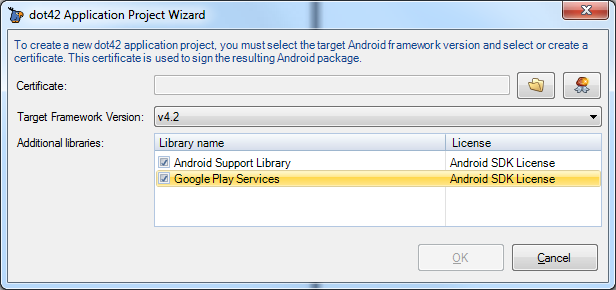
If you create a new project and want to add Google Play Services to your project, you can do this by checking the library in the New Project wizard:


You will notice that when you check Google Play Services then Android Support Library will be checked automatically because it is required.

After hitting OK, you will be asked to accept the Android SDK License agreement:


After hitting I agree, your new project is created. If you expand the Reference node in the Solution Explorer, you will see that references to both dot42.AndroidSupportLibrary.dll and dot42.GooglePlayServices.dll have been added:


Register your app in the Google APIs Console

Before you can run your app on a physical device, you need to register your app in the Google APIs Console as follows:

(the following is partly copied from https://developers.google.com/+/mobile/android/getting-started, Step 1. but modifed for dot42)

1. In the Google APIs Console, create an API project for your application.

2. In the Services pane, enable the Google+ API and any other APIs that your app requires.

3. In the API Access pane, create an OAuth 2.0 client ID by clicking Create an OAuth 2.0 Client ID:

a. Type a product name in the dialog box that displays, and click Next. Providing a product logo and home page URL are optional.

b. Choose Installed application as your Application type and select Android as type.

c. In the Package name field, enter your Android's app's package name. You can find this on the Android tab of your Visual Studio project properties dialog.


d. Make sure the Output view is visible and compile the project. Copy the SHA1 fingerprint from the output view:


e. Paste the SHA-1 fingerprint into the Signing certificate fingerprint field.

f. To activate interactive posts, enable the Deep Linking option.

g. Click the Create client ID button.

Google+ Sample

The Google Play services package includes the Google+ sample located in <android-sdk>/extras/google-play-services/samples/plus. We have taken this sample, ported it to C# and made it run as a dot42 app. View it on GitHub.


Android SDK Manager and JDK


Unfortunaly, the JDK from Oracle and the Android SDK Manager are not part of a single coordinated install and getting them to work together can be frustrating sometimes.

Until now, dot42 required the Android SDK Manager if you wanted to download and import packages such as Google Play Services.

The SDK Manager, in turn, requires the JDK from Oracle. My experience with identifying the appropriate JDK version on the Oracle site and installing it is far from painless.

After it has been installed, getting the Android SDK manager to run properly is the next hurdle. On different machines I discovered that I had to either Run as administator. Or if that didn't work, I had to run the android.bat batch from the Android SDK tools folder instead, or I had to tune my PATH environment variable. I have also found myself uninstalling and installing different versions and editions of the JDK just to see what combination would work. The high number of up votes of related questions and answers on StackOverflow is testimony to this problem.

For the purpose of dot42, this effort seems unproportional high given the minor role of the Android SDK manager and especially that of the JDK (we don't use it to parse or generate Java - we do that ourselves).

So, as of 1.0.0.70, we have decided to do offline imports of libraries such as Google Play Services and the Android Support Library and bundle them as DLLs with dot42. You import them by just checking them in the New Project Wizard:


Note that these DLLs are just wrappers to bind with C#. At runtime, your APK will call directly into the corresponding APK or use the original Java code compiled to DEX.

We consider this a first step towards making dot42 more self-contained and realize that there may still be occasions where you need the Android SDK Manager. But we strive to remove this requirement if possible.