Thursday, March 13, 2014

AndroidManifest.xml Support Added

At the very start we decided to replace the traditional AndroidManifest.xml with C# attrbutes. The reasoning was that this is what C# developers are more familiar with. E.g. the following:
[assembly: Application("dot42Application2")]
translates into:
<application android:label="dot42Application2">
Under the hood, the dot42 compiler generates the AndroidManifest.xml from the attributes before packaging it with the APK.

User feedback told us that something that was intended to be a convenience was more of an obstruction.

Manifest resource item

With 1.0.1.80 we have introduced the manifest resource item template. This allows you to include a traditional AndroidManifest.xml in your dot42 project.

You can either create a new one from the Solution Explorer like this:
  • from the context menu of your project select Add -> New Item... 
  • From the dialog, select node dot42->Android
  • From the available items select Manifest resource and set its name at the bottom of the dialog

Visual Studio will now add an Android Manifest to your solution. Some information is taken from your project settings, and inserted in the manifest.

Or you can simply copy an existing manifest to your project, include it in your project and set the build action to "ManifestResource" like this:


If you compile your project, Visual Studio will now detect that you have a manifest in your project and uses this file instead of generating one from attributes. This gives you more freedom over what your manifest contains. But with more freedom comes more responsibility: you have to make sure that all information in the manifest is correct. The only thing we check is if the SDK versions of your project match those in the manifest file. If not, a build error is generated. Clicking this error will take you to the attribute in the manifest that needs to be changed.

If you have both manifest attributes and a manifest file, then your attributes are ignored.

You can have only one manifest in your project. If more are found, a build error is generated for each manifest file. This makes it easier to locate all manifest files.

What about my 'old' manifest attributes?

These will continue to work. Your manifest attributes will only be ignored if you add a manifest resource to your project. If you want to transition from manifest attributes to an explicit manifest file, you can find the generated AndroidManifest.xml in \obj\Debug\TempCode after a successful build. Copy it to the root of your project and include it as described above.


Wednesday, January 22, 2014

dot42's .NET implementation soon to be released under Apache 2.0

Due to its design, dot42 supports the entire Android API and part of the .NET API. The .NET classes are handcrafted on top of the Android/Java API. Shortly, we will be moving the .NET API implementation to github. It will be licensed under the Apache License, version 2.0. Note that this does not apply to the tools themselves.

This should allow you and others to help us extend the supported subset of the .NET API. Initially, the repository will be private and a select group will be allowed access. After things ironed out, it becomes public. Should not take longet than a couple of weeks. Anyone is invited to request early access (frank at dot42.com).

Wednesday, September 4, 2013

1.0.1.77 - What's new

To get the latest version, run "Check for updates" from the Device Center or download.

New: Added CancellationToken support to async.

Added CancellationToken class. Also added many methods overloads that use this type.

New: Added refresh function to Device center.

You can now scan for new devices from the Device Center.

New: Added copy to clipboard function to Assembly Checker.

If you encounter missing types or members, use this function to copy everything to the clipboard and paste it to an email for support.

New: 'Import res folder' in VisualStudio

The Android SDK requires a folder structure for your resources under a folder called "res". In dot42 you can put your resources anywhere in your project, and the filename contains resource qualifiers. You can now  import a traditional Android "res" folder into your dot42 project and all the conversions are done automatically.

Changed: Activation is started directly from installer.

At the end of the dot42 installation you will be asked to activate your license.

Changed: Removed support for creating/editing emulator images.

All support for creating and editing emulator images has been removed. We expect developers to either run a real device or use a virtual machine instead.

Changed: Replaced device connection wizard with online help.

No comments

Changed: Various UI improvements.

No comments

Changed: AtomicInteger/AtomicLong had a few incorrect properties.

The properties AndIncrement and AndDecrement have been removed.

Fixed: DateTime.ToString/ToShortDateString

Some format strings yielded incorrect  results.

Fixed: Add JAR reference missing from Visual Studio.

The "Add Jar reference" function was broken.

Monday, September 2, 2013

1.0.1.75 - What's new

To get the latest version, run "Check for updates" from the Device Center or download.
This release does not contain any new features. It fixes several issues found in the 1.0.1.74 release.

Fixed: Async on single CPU systems

The implementation of async may throw an exception or block execution on single CPU systems.

Fixed: Nested interface constants classes could be non-visible

Nested interface constants classes (e.g. ContactsContract.ISyncColumnsConstants) can be nested protected and as such not visible to you as a programmer. Now all such classes are public.

Fixed: Nested try/catch blocks with catch(object) are incorrect

Sometimes the C# compiler generates a try/catch block with a catch(System.Object) handler. If you combine that with a catch(System.Exception) handler, the order of catch handlers becomes invalid.
Now all catch(System.Object) handlers are compiled as catch-all handler, solving the order issue.

Fixed: Some local variables do not appear in Locals window

In the Locals windows of the debugger, some local variables of large methods do not appear as expected. This was related to register spilling.

Saturday, August 31, 2013

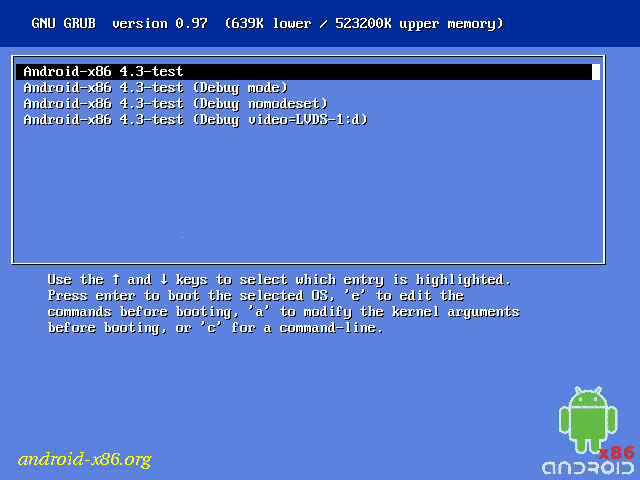
Running Android 4.3 in Hyper-V

To make testing easier, we wanted to run Android on our desktop. Because we develop on Windows 8, the obvious choice is to run Android in Hyper-V, since that already comes with Windows 8. In this post we describe how we did it and what we found.

Get started

There is a ready made iso image available on android-x86.org. We want the latest, so we choose the Android-x86-4.3-devel image from July 25.

Next,  we create a Hyper-V standard virtual machine without any OS settings that has the following specifications:

  • 1 CPU
  • 512MB memory
  • 32GB virtual harddisk (a bit large, but who cares)
  • Legacy Network Adapter connected to an external virtual switch
  • DVD mapped to the downloaded iso image

Installation

We fire up the virtual machine and the following boot screen appears:


We select the Installation option. Next, several questions are asked, mainly about harddisk partitioning. We create a single partition for our entire virtual harddisk and make it bootable. The installation completes quickly afterwards.

First start

When we run Android for the first time, this boot screen appears:


We let the timer run out and continue with the boot process. The root prompt appeares for a short period, after which the the graphical environment shows up:


Since this is the first time, we have to go through the standard Android first time settings such as user accounts, WiFi and so on. Since we have connected to a (virtual) legacy network adapter, we skip the WiFi part. Finally we reach an empty but familiar homescreen:

Deploy and Run dot42 apps

Now it is time to deploy and run a dot42 app on our fresh virtual Android. We use the dot42 Device Center to connect to a networked device. We use Settings - About - Network on the virtual machine to get its IP address and enter that in the dot42 Device Center.


After that the virtual machine is visible in the Device Center and we can develop with it. We take the SpinningCube sample and here is how it looks:


It ran pretty smoothly, atleast a lot better than in the emulator.

Tips and tricks

Here are a couple tips and tricks we found out in the process:
  1. Bamboo tablets do not work as mouse in Android inside Hyper-V, we had to connect a normal mouse instead.
  2. Pressing Alt-Left or Alt-Right when inside Android-X86 will switch between the graphical UI and the root console.
  3. One time we had to reset the virtual machine after Android went to sleep. We tried all recommended key combinations, but nothing worked. After that we used the developer setting in Android to prevent sleeping.


Tuesday, August 27, 2013

How we implemented Async/await

You can now use async/await with dot42. This valuable language construct lets you write elegant code that looks exactly like synchronous code, but works asynchronously.

Example:

namespace AsyncAndroid
{
  [Activity]
  public class MainActivity : Activity
  {
    protected override void OnCreate(Bundle savedInstance)
    {
      base.OnCreate(savedInstance);
      SetContentView(R.Layouts.MainLayout);

      var myButton = FindViewById<Button>(R.Ids.myButton);
      myButton.Click += myButton_Click;
    }

    private async void myButton_Click(object sender, EventArgs e)
    {
      var status = FindViewById<TextView>(R.Ids.txtStatus);
      status.Text = "Waiting...";

      await Task.Factory.StartNew(() => DoSomethingLongRunning());

      status = FindViewById<TextView>(R.Ids.txtStatus);
      status.Text = "I'm back";
    }
  }
}

The above code implements a simple button click that starts a lengthy job and updates a text view to reflect the status. The click will always be handled on the UI thread. Doing something lengthy on the UI thread is a bad idea. With the await keyword, the method will return directly (to the UI thread) while the lengthy job is started on a background thread. When the lengthy job is ready, execution is resumed (on the UI thread).

To achieve the same with traditional threads, background workers, AsyncTasks, Loader's etc. you would be writing much less readable code.

Configuration changes

A problem that is specific to Android, is that of configuration changes. By default your activity will be destroyed and restarted when a configuration change happens. For example rotating your device will (by default) result in a new activity instance. This is fine unless you have a long running activity on some thread.

Let's say you want to download a large image and show the content in an ImageView afterwards. You typically start a background thread to download the image and pass the activity instance and perform a callback after the download has finished. However, if the activity was destroyed and recreated in the meantime (because of a configuration change), the callback will show the downloaded image in an ImageView that has been disconnected. The new activity instance will not show the downloaded image.

The same is still true if you use the following code:

var webClient = new WebClient();
var data = await webClient
                     .DownloadDataTaskAsync(myImageUrl);
var imageView = this.FindViewById<ImageView>(R.Ids.MyImage);
imageView.SetImageBitmap(DecodeBitmapData(data));

The async/await in the above code will ensure that execution resumes on the current UI thread, but not on the correct Activity instance (this.FindViewById will be invoked on the old activity instance).

To solve this problem, we have extended the Task API. Let's take a look at the same code and see how it works.

var webClient = new WebClient();
var data = await webClient
                     .DownloadDataTaskAsync(myImageUrl)
                     .ConfigureAwait(this);
var imageView = this.FindViewById<ImageView>(R.Ids.MyImage);
imageView.SetImageBitmap(DecodeBitmapData(data));

The additional call to ConfigureAwait(this) ensures that after await you will return on the original thread AND the this pointer will point to the latest activity instance.

To make this work you must add this line of code to the OnCreate method of your activity:

SynchronizationContext.SetSynchronizationContext(this);

Note that only the this pointer is updated. If you would hold on to an imageView instance before the await and use it after the await, you would still be updating the wrong instance of imageView.

Task scheduling

When you start a new Task, the scheduler decides what thread executes that task. In dot42 the task scheduler follows the following rules:
  1. Normal tasks will execute on a thread from a thread pool. By default this thread pool reserves multiple threads. In future versions we will refine this.
  2. Code following an await will continue on the thread that started the awaited task (even if the task was started inside asynchronous code). This may be refined in future versions.
  3. Tasks created with a LongRunning option will always execute on a new thread.
  4. Tasks created by Async methods in the dot42 .NET framework implementation (such as WebClient.DownloadDataTaskAsync) will run on threads of a seperate IO thread pool. This ensures that slow IO tasks will not be able to block your short running normal tasks.


1.0.1.74 - What's new

To get the latest version, run "Check for updates" from the Device Center or download.

New: Async/await support

You can now use the C# 5 async/await keywords to create much cleaner asynchronous code.
Besides supporting most of the System.Threading.Tasks types, we took it a step further and helped you solve a nasty problem in Android: working with asynchronous code in combination with configuration changes. For more info, read this blog.

New: PropertyInfo support

Added support for using properties in combination with reflection. Metadata for properties is only added to the APK if you actually use the PropertyInfo class. Otherwise no such metadata is created to minimize the APK size.

New: Several new samples

New samples demonstrate async/await and Google maps (thanks to Brush Smith). We ported Kilobolt from the Android game tutorial.

Change: Installer name and installation folder

The installer has been renamed from dot42Setup.exe to dot42AndroidSetup.exe. Application folders and registry keys have been renamed similarly. For future extensibility.

Improved: Enum performance

Mathematics with enums were rather slow at runtime. This has been improved significantly.

Fixed: AssemblyChecker tool misses forwarded types

All types of the .NET framework are implemented in dot42.dll. Type forwarders make sure these types are found in the dot42 counterparts of the original assemblies such as mscorlib.dll, System.dll etc. The AssemblyChecker tool missed many of these type forwarders. This resulted in false warnings.

Fixed and Improved: XDocument

Some whitespace/element sequences did not result in correct XText and XElement sequences.
Several missing members of the XDocument API have been added.

Fixed: Lots of compiler issues

Most fixes are related to structs and generics (or a combination of them).

Fixed: Debugger did not show full class hierarchy.

The "Locals" debug window allowed you to view members of a class and its base class, but no those of the base class of the base class and so on.